Skip to content
DVT PSS IDE for VS Code User Guide
26.1.21 (12 October 2026)
⌘ K
DVT PSS IDE for VS Code User Guide
26.1.21 (12 October 2026)
  • Installation
    • System Requirements
    • Install DVT for VS Code from Marketplace
    • Install DVT for VS Code from VSIX
    • Install DVT for VS Code Using a Pre-Packed Distribution
    • Set the License
  • User Interface
    • VS Code User Interface
    • DVT IDE for VS Code User Interface
  • Commands
  • Predefined Projects
  • Project Templates
    • What is a project template?
    • How to generate code from a project template
    • Template Configuration
  • Build Configurations
    • Project Natures
    • Non-top files
    • default.build
    • Auto-config
    • Simulator Log-config
    • Emulating compiler invocations
    • Multiple .build Files
    • Compatibility Modes
    • Paths
    • Strings
    • Comments
    • Environment Variables
    • Including Other Argument Files
    • Reusing Configuration Files
    • Build Persistence
    • All Build Directives
    • e Language Test Files
    • e Language SPECMAN_PATH
    • SystemVerilog OVM or UVM Library Compilation
    • Xilinx Libraries Compilation
    • Intel(Altera) Quartus Libraries Compilation
    • Questa Libraries Compilation
    • Use of External Programs
  • Compile Checks
    • Compile Waivers
    • Semantic Checks
  • Quick Fix Proposals
  • AI Assistant
    • Overview
    • Getting Started
    • Key Terms
    • Working in Chat
    • Working with Git
    • Code Completion
    • Problem Auto-correct
    • Protecting Code
    • Reference
    • Advanced LLM Configuration
    • How to
      • Set-up Local LLMs Using Ollama
      • Add Comments to Selected Code
    • Troubleshooting
  • MCP Server
    • Overview
    • Companion Skills
    • How to Configure
      • GitHub Copilot
      • Cursor
      • Cline
      • Continue
      • Claude Code
      • Codex
      • Antigravity
      • Kiro
      • Devin (ex-Windsurf)
  • Content Assist (Autocomplete)
    • Content assist for CamelCase and Underscore
    • Code Snippets
  • Code Snippets
    • Code Snippets in Content Assist
    • Code Snippet Scope
    • Create new code snippet
  • Hyperlinks
  • Show Usages
  • Show Instances
  • Peek Exploration
  • Refactoring
  • Code Formatting
    • Whitespace
    • Indentation
    • Vertical Alignment
    • Line Wrapping
    • Disable Format for Code Sections
    • Preferences Keys
  • Highlight
    • Syntax Coloring
    • Inactive Code Highlight
  • Tooltips
  • Workspace Symbols
  • Views
    • Compile Order View
    • Compiled Files View
    • Diagnostics View
    • Inspect View
    • Outline View
    • Problems View
  • Quick Search in Views
    • CamelCase
    • Simple Regex
    • Hierarchical Search
    • Search for Members
  • Content Filters
    • Content Filters XML syntax
    • Filtering by Element Type
    • Content Filters Examples
    • Predefined Content Filters
  • Database Out of Sync Notification
  • Scripts
    • dvt_code.sh
    • dvt_ls.sh
    • dvt_build.sh
    • dvt_env
  • External Tools Integration
    • Tasks
    • Problem Matchers
    • Task Variables
  • Custom Scripts
  • SCM Checkout Hook
  • Memory Monitor
  • Application Notes
    • Flow Integration
    • Running VS Code in LSF Environments
    • Environment Variables
    • VS Code Empty Webviews
    • Output and logging
    • Understanding DVT IDE memory usage
  • Handy VS Code Documentation Pointers
  • Q & A
    • Can I deactivate DVT support for a workspace even though one of my workspace folders contains a .dvt directory?
    • Unable to write program user data
    • Mapping Linux to Windows (/proj/ to Z:\proj\)
    • How to set multiple paths as sources of predefined projects ?
    • How to change the directory where the build log file is saved ?
  • What is New?
  • How to Report an Issue?
  • Legal Notices
  • Third Party Licenses
DVT PSS IDE for VS Code User Guide
/
Hyperlinks

Hyperlinks

Hyperlinks are available for all types, fields, symbols, functions etc. in the source code files that DVT analyzes in your project.

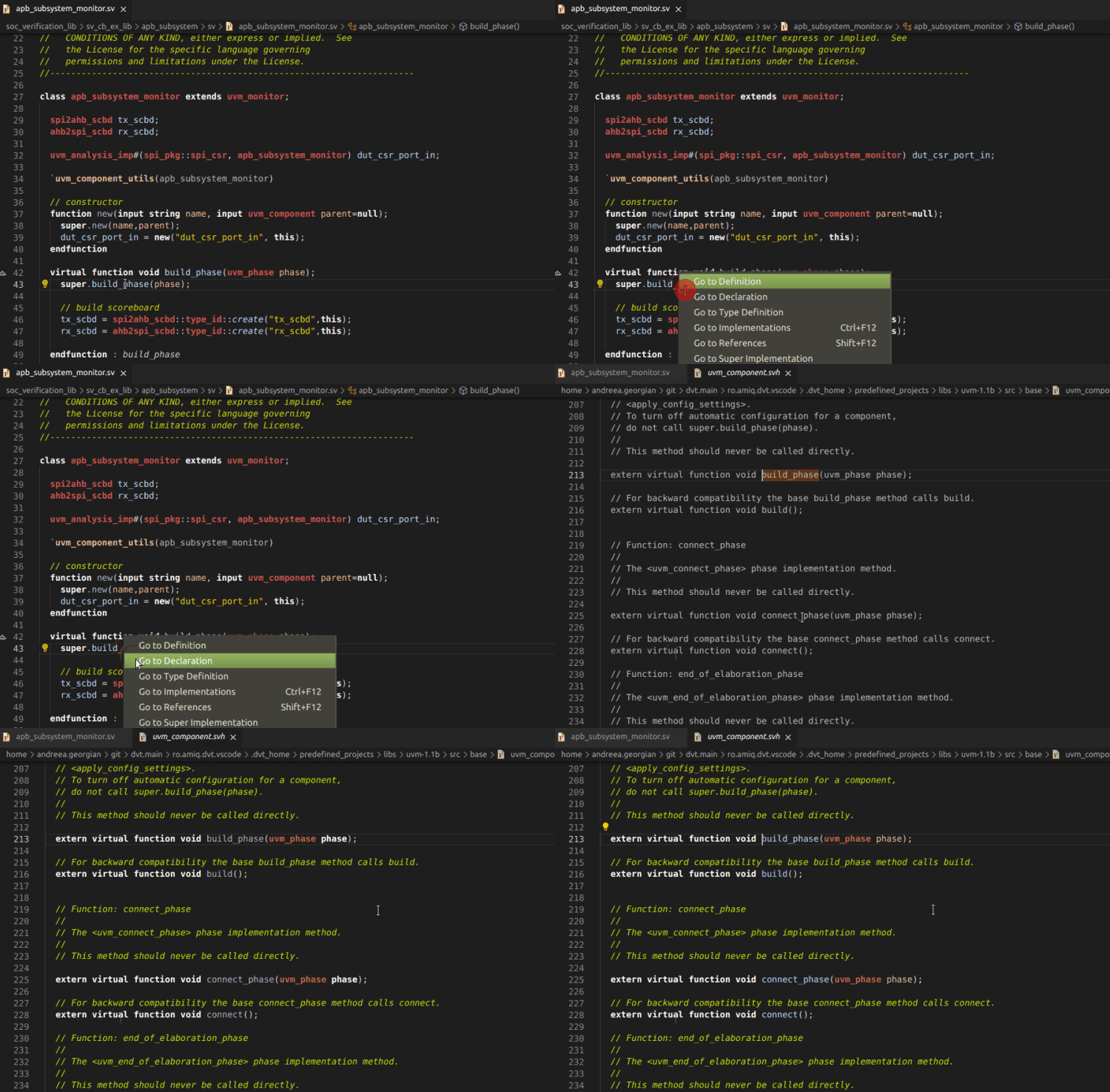
Go to Declaration

Place editor cursor over an identifier and use the Go to Declaration command to go to the declaration of the element.
../../_images/open_declaration.gif

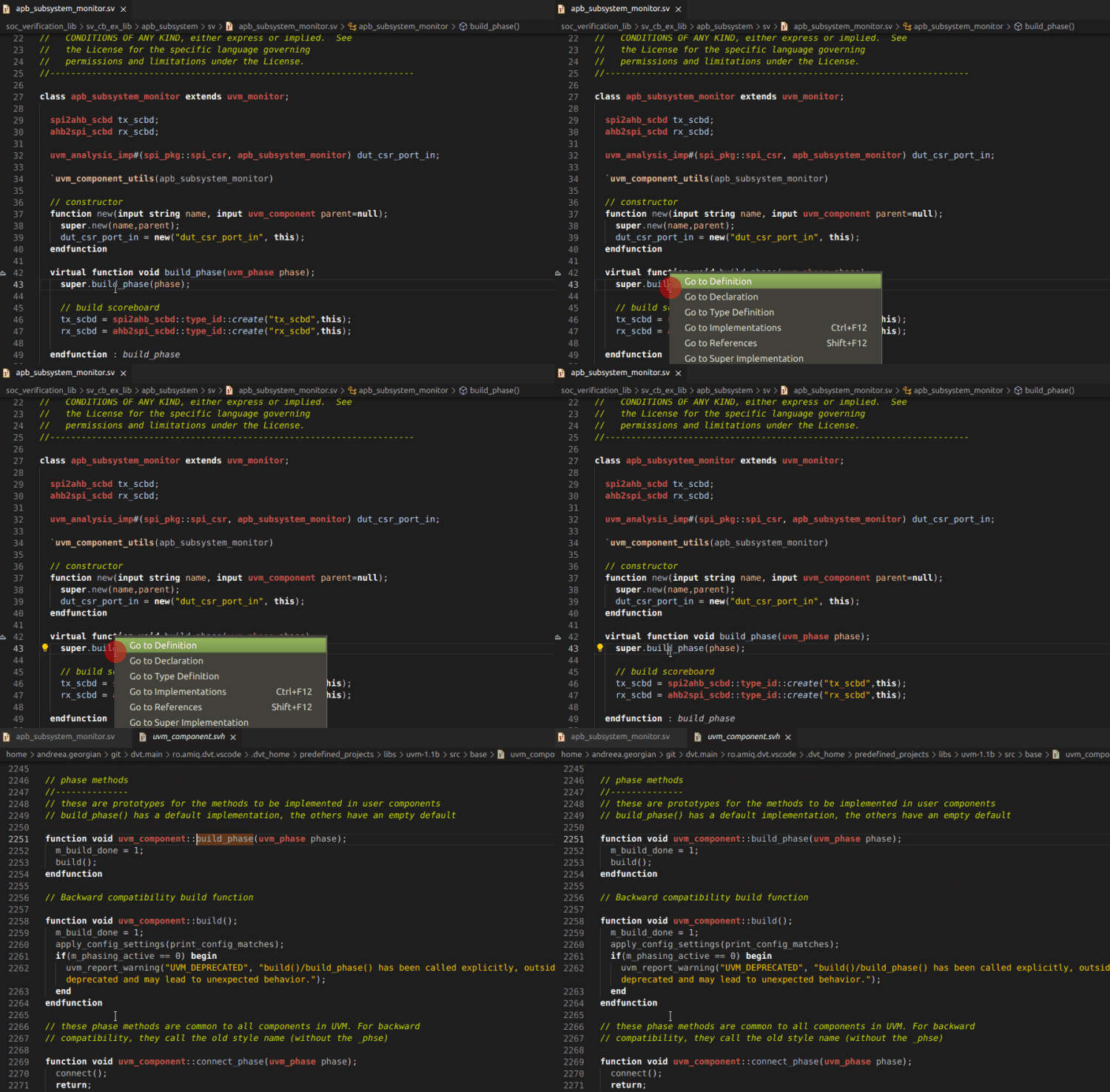
Go to Definition

Place editor cursor over an identifier while holding down Ctrl. The identifier becomes a hyperlink, which jumps to the definition of the element.

You can also use the Go to Definition command.
../../_images/open_definition.gif

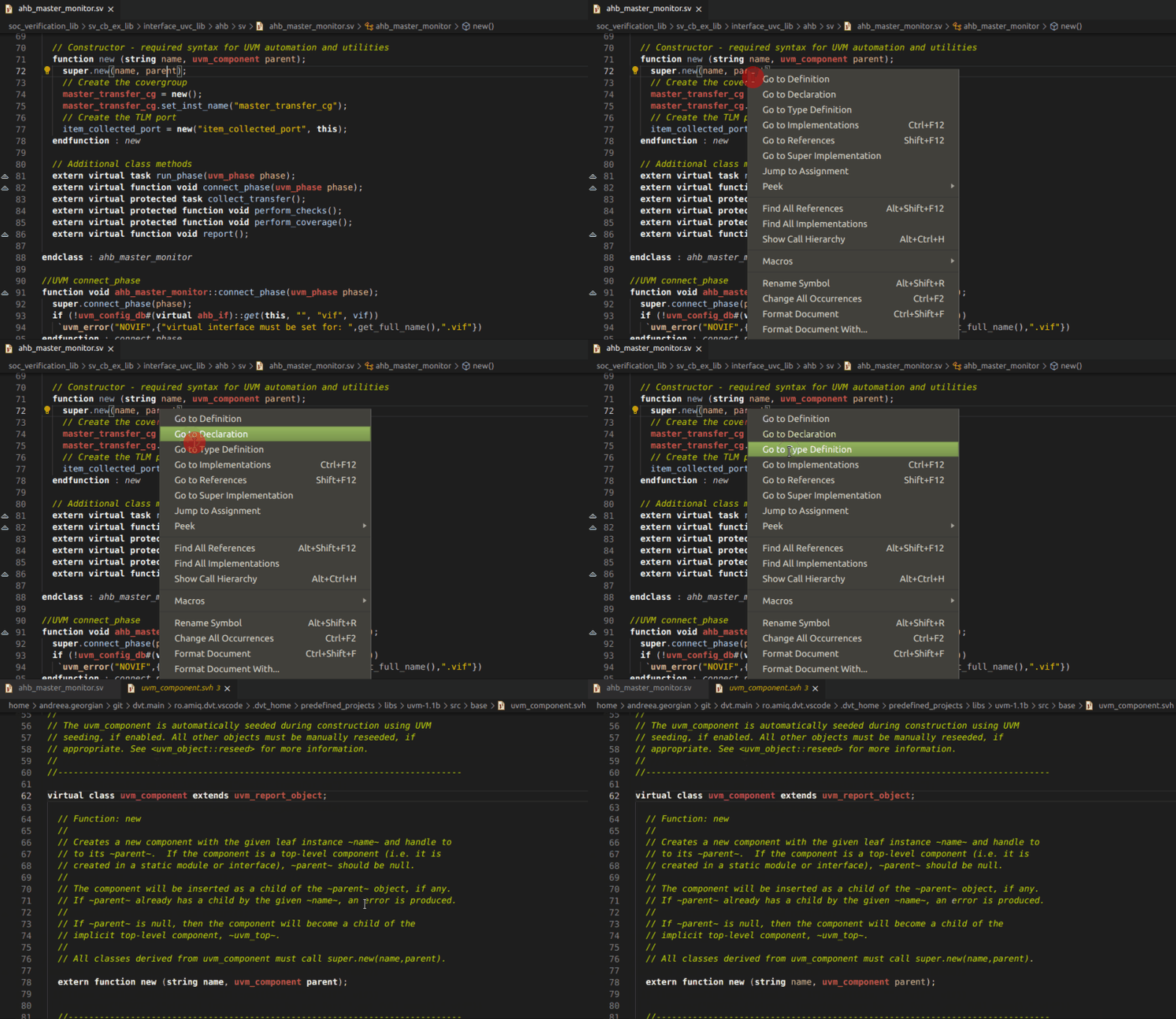
Go to Type definition

Place editor cursor over an identifier and use the Go to Type Definition command to go to the type definition of the element.
../../_images/open_type.gif

Hyperlinks in Comments

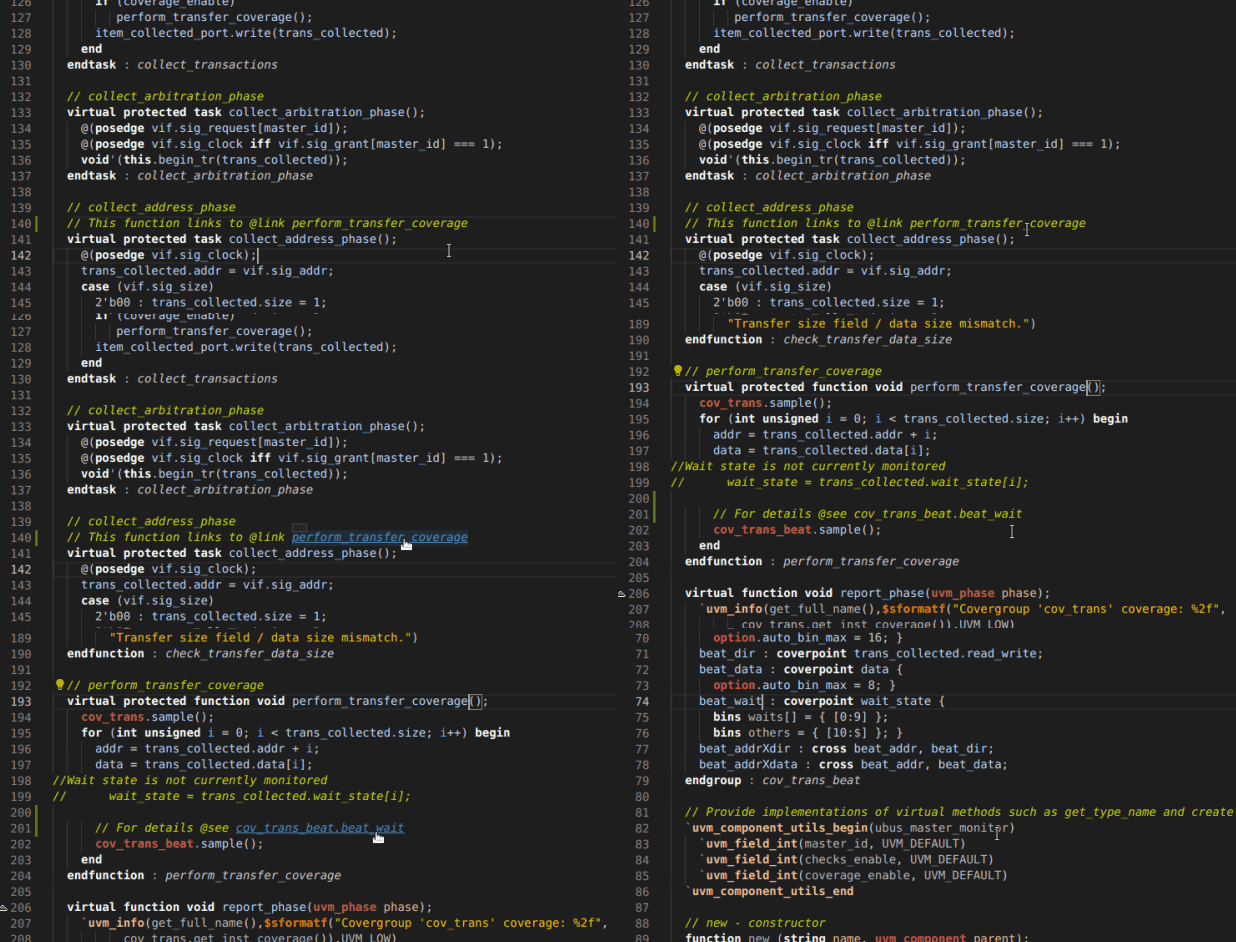
You can define hyperlinks in comments using the @link or @see pragmas, for example:

// @link uvm_pkg::run_test
// For more details @see spi_if.miso and @see spi_if.mosi

Hover the hierarchical id specified after the pragma with the mouse cursor while holding down Ctrl and Click to go to the element’s declaration.

The hierarchical identifier following @link or @see is of the form:

[<package_name>::<type_name>.<inner_type_name>.]<element_name>

where <element_name> must be a type (class, struct, module, entity, interface, etc.) or a type member (method, field, event, signal, port etc.).
../../_images/hyperlinks_in_comments.gif
Create new code snippet
Show Usages

On this page

  • Go to Declaration
  • Go to Definition
  • Go to Type definition
  • Hyperlinks in Comments

© 2005-2026 AMIQ EDA s.r.l. (AMIQ). All rights reserved. DVT 26.1.21 (12 October 2026). Built with Sphinx 8.1.3